EcoGuide · Smart Thermostats · Published 2026-09-28 · 1,100 words
How to Reset an Amazon Smart Thermostat: Restart, Partial and Factory Reset
Which Reset Do You Need?
Amazon documents three levels, and each one erases more than the last. Start at the top and only move down if the problem is still there.
| Option | What it erases | Use it when |
|---|---|---|
| Restart | Nothing | Almost anything. Amazon says most issues are fixed this way. |
| Partial reset | Everything except your HVAC configuration | It shows as unresponsive in the Alexa app, ignores voice commands, or has Wi-Fi problems. |
| Factory reset | Everything, including HVAC configuration | A partial reset did not help, or you are moving the thermostat to another system. |
All three sequences below are taken from Amazon’s help pages, linked in the sources at the end.
1. Restart (Try This First)
Gently pull the thermostat’s faceplate off the wall plate, wait a few seconds, and push it back on. That cuts and restores its power.
Amazon also recommends a restart if the Alexa app shows a “configuration failure” during setup: the restart lets the thermostat install pending updates.
2. Partial Reset (Keeps Your HVAC Settings)
- Press the Up Temperature and middle Mode buttons together for 10 seconds, until rEs appears on the display.
- Press and hold the middle Mode button. The thermostat resets after a five-second countdown.
- Wait for a red exclamation mark on the screen. That means it is ready to be set up again.
- Reconnect it to Wi-Fi from the Alexa app (see “Set it up again” below).
A partial reset erases everything except the HVAC configuration, so you do not have to re-enter your system type and wiring.
3. Factory Reset (Erases Everything)
- Press the Up Temperature, Down Temperature and Mode buttons together for 10 seconds, until rEs appears.
- Press and hold the middle Mode button until sET appears, after the five-second countdown.
- In the Alexa app, remove the old thermostat: Devices → Thermostat → your thermostat → Settings → Delete/Remove.
- Set it up again as a new device.
Because this wipes the HVAC configuration too, you will be asked about your system type again. Have a photo of the wiring handy.
Set It Up Again in the Alexa App
- Open the Alexa app and select Devices, then the + icon, then Add Device.
- Under All Devices, choose Thermostat, then Amazon.
- When asked whether it is already on the wall, choose Yes to go straight to Wi-Fi and Alexa setup.
If you only need to change networks, you do not need to reset at all: Devices → Thermostat → your thermostat → Device Settings → Thermostat configuration → Wi-Fi.
If It Shows Offline or Won’t Stay Connected
Amazon’s printed setup guide lists the requirements that cause most connection problems:
- 2.4 GHz Wi-Fi. The thermostat requires a 2.4 GHz network. If your router combines 2.4 and 5 GHz under one name, and setup keeps failing, check your router’s settings for a separate 2.4 GHz network.
- A C wire. Amazon lists the thermostat as C-wire required, or a C-wire adapter. Without one the display stays blank.
- Voltage. The guide gives 18–30 VAC as the acceptable range at the thermostat. A thermostat that drops offline when the heating or cooling starts is often short of power, not short of Wi-Fi.
- The light. A flashing red light means a Wi-Fi issue: confirm the thermostat still appears in the Alexa app, and if not, set it up again.
If it goes blank or reboots rather than just dropping offline, that is a power fault; see smart thermostat black or blank screen.
What the Yellow Light and “Delayed Start” Mean
A flashing yellow light is compressor protection, and Amazon’s guide says to allow 5–7 minutes. It is not a fault and a reset will not clear it faster. Our Delayed Start guide covers the case where the delay never ends.
If You Are Using a C-Wire Adapter
Amazon’s adapter moves two wires at the thermostat: the old G wire becomes C, and the old Y wire becomes K. When it is wired correctly there are wires in the C and K terminals and none in Y or G. If you reset a thermostat that uses the adapter and then reconfigure it by hand, make sure the wiring you declare matches this.
If It Keeps Failing
A multimeter settles whether the thermostat is getting the 18–30 VAC Amazon specifies. If you decide to replace it, these two avoid the C-wire problem.
We may earn a commission if you buy through these links, at no extra cost to you. Products are chosen on published specifications; we do not test them in-house (how we choose).
Klein Tools 69149P Test Kit (multimeter + voltage tester)
Measure the voltage between R and C before replacing anything.
View on Amazon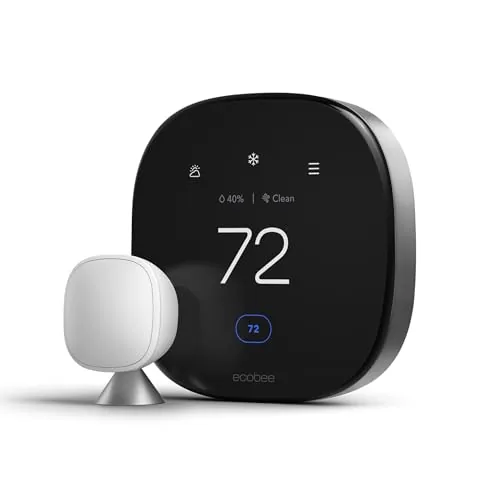
ecobee Smart Thermostat Premium
Includes a Power Extender Kit for homes without a C wire; Alexa built in.
View on AmazonSensi Lite Smart Thermostat (ST25)
Sensi says it works without a C wire on most systems (not heat pumps, heat-only or cool-only).
View on AmazonFree: Home Energy Audit Checklist (PDF)
A two-page, room-by-room checklist for finding air leaks, standby power and heating and cooling waste yourself, in the order that pays back fastest. Get it now, plus new fix guides by email. Unsubscribe any time.
By signing up you agree to receive emails from EcoHome Intelligence. See our Privacy Policy.
Frequently Asked Questions
How do I reset my Amazon Smart Thermostat without losing settings?
Use the partial reset: hold Up Temperature and Mode for 10 seconds until rEs appears, then hold Mode through the five-second countdown. It keeps your HVAC configuration.
How do I factory reset an Amazon Smart Thermostat?
Hold Up Temperature, Down Temperature and Mode together for 10 seconds until rEs appears, then hold Mode until sET appears. Remove the thermostat from the Alexa app and set it up again.
Why does my Amazon thermostat say it is offline?
Usually a Wi-Fi or power problem. It needs a 2.4 GHz network and a C wire or adapter. Restart it first; if the Alexa app still shows it as unresponsive, do a partial reset and reconnect it.
How do I change the Wi-Fi network on an Amazon Smart Thermostat?
In the Alexa app go to Devices, Thermostat, select it, then Device Settings, Thermostat configuration, Wi-Fi. No reset is needed.
What does the flashing yellow light mean?
Compressor protection. Amazon says to allow 5 to 7 minutes before the system starts.
Related Guides
- Amazon thermostat says “Delayed Start” — when the delay never clears
- Does the Amazon Smart Thermostat need a C-wire? — checking your wiring
- Smart thermostat black or blank screen — when it has no power at all
- Smart thermostat troubleshooting — every fix guide by symptom
Sources
- Amazon: Perform a Full Factory Reset on Your Amazon Smart Thermostat
- Amazon: Perform a Partial Reset on Your Amazon Smart Thermostat
- Amazon: Update the Wi-Fi Settings on Your Amazon Smart Thermostat
- Amazon: Set Up Your Amazon Smart Thermostat
- Amazon: Connect a C-wire Adapter to Your Amazon Smart Thermostat
- Amazon Smart Thermostat setup guide (PDF)
